Three small things decide which of your pages Google can find and show: a text file called robots.txt, a tag called noindex, and an XML sitemap. They sound like they do the same job, and mixing them up is one of the most common ways a website quietly disappears from search.
Here is the short version, before the details:
| Robots.txt | Noindex | XML sitemap | |
|---|---|---|---|
| What it says | "Don't visit these paths" | "Don't show this page in results" | "Here are the pages I want found" |
| Controls | Crawling | Indexing | Discovery |
| Where it lives | yourdomain.com/robots.txt | A meta tag or HTTP header on the page | A file, usually /sitemap.xml |
| Can a page still appear in Google? | Yes, if other pages link to it | No, once Google sees the tag | Listing doesn't guarantee it |
Robots.txt: where crawlers may go
Robots.txt is a plain text file at the root of your domain. Before a search engine crawls your pages, it reads this file to see which areas it may visit. This is Rankdesk's own, in full:
User-agent: *
Disallow: /api/

Sitemap: https://seo-all.vercel.app/sitemap.xml
- User-agent says which crawler the rules apply to.
*means all of them. - Disallow lists paths the crawler shouldn't visit. Rankdesk blocks
/api/, the addresses its tools use behind the scenes, because they return data, not pages. - Allow (optional) makes an exception inside a blocked path.
- Sitemap tells every crawler where your sitemap is.
Paths match from the start of the address. Disallow: /admin blocks /admin, /admin/settings and also /administration. Add a trailing slash, /admin/, if you only mean the folder. Paths are case-sensitive, so /Blog and /blog are different.
What to block
Only areas with no value in search:
- admin and login pages
- cart, checkout and account pages
- internal search result pages
- filter and sort variations that create thousands of near-duplicate URLs, such as
?color=red&sort=price - API endpoints and other non-page addresses
For most small business sites, the file is nearly empty, and that's fine. Allowing everything is a safe default.
What robots.txt can't do
It doesn't remove pages from Google. It stops crawling, not indexing. If other pages link to a blocked URL, Google can still list it, usually with no description, because it was never allowed to read the page.
It isn't security. Anyone can open the file and read it, so listing a private folder there actually advertises it. Protect private pages with a password.
Blocking AI crawlers
Some AI companies use their own crawlers to collect training data and say they respect robots.txt. To opt out, add a group for each one:
User-agent: GPTBot
Disallow: /

User-agent: Google-Extended
Disallow: /
Google-Extended controls whether Google uses your content for its AI models. It doesn't affect normal Google Search crawling or rankings. Whether to block these is a business decision: blocking may also keep your content out of some AI answers, and AI assistants are becoming a real source of visitors for some sites.
Noindex: keeping a page out of results
Noindex is an instruction on the page itself. It goes in the page's <head>:
<meta name="robots" content="noindex">
Or as an HTTP header, which is how you noindex a PDF or other file:
X-Robots-Tag: noindex
When Google crawls the page and sees it, the page is dropped from results.
Use noindex for pages people need but searchers don't:
- thank-you and order confirmation pages
- thin pages such as tag archives with one post
- campaign landing pages you don't want found organically
- staging copies of a site that must be reachable (better still, password-protect them)
The mistake that keeps pages in Google
Putting noindex on a page and blocking it in robots.txt. Google can't crawl the page, so it never sees the noindex, and the page can stay in results indefinitely.
To remove a page from Google, let it be crawled and add noindex. Once it has dropped out, you can block it in robots.txt if you also want to save crawling, though small sites rarely need to.
If something sensitive is in Google right now, use the Removals tool in Search Console to hide it for about six months, then add noindex or delete the page before that runs out.
When to use neither
If a page shouldn't exist, delete it and return a 404, or redirect it to its replacement. If a page is a copy of another, use a canonical tag. Both are covered in the guide to canonical tags and redirects.
XML sitemaps: the list of pages you want found
An XML sitemap is a file listing the pages you want search engines to know about, like handing Google a table of contents. Google can find pages without one on a small, well-linked site, but a sitemap gets new pages discovered sooner, makes sure deep pages aren't missed, and gives you a useful report in Search Console.
<?xml version="1.0" encoding="UTF-8"?>
<urlset xmlns="http://www.sitemaps.org/schemas/sitemap/0.9">
  <url>
    <loc>https://example.com/silk-sarees</loc>
    <lastmod>2026-10-01</lastmod>
  </url>
</urlset>
Each page is a <url> with its full address in <loc>. <lastmod> is the date the content last changed. Google has said it ignores <changefreq> and <priority>, but it does use <lastmod> when the dates are honest. Setting every page to today's date teaches Google to ignore the field, so only change it when the page really changes.
What belongs in it
Only pages you want in search results, which means each one:
- returns status 200
- isn't blocked by robots.txt
- has no noindex tag
- is the canonical version, not a duplicate
Leave out thank-you, cart, checkout and login pages, internal search results, filter URLs, redirected or broken URLs, http:// versions of an HTTPS site, and addresses with tracking parameters. A sitemap full of broken or duplicate URLs wastes crawling and makes the report hard to read.
Limits and sitemap indexes
One sitemap can hold up to 50,000 URLs and be up to 50 MB uncompressed. Bigger sites split pages into several files listed in a sitemap index:
<sitemapindex xmlns="http://www.sitemaps.org/schemas/sitemap/0.9">
  <sitemap><loc>https://example.com/sitemap-products.xml</loc></sitemap>
  <sitemap><loc>https://example.com/sitemap-blog.xml</loc></sitemap>
</sitemapindex>
Splitting by type is handy even on small sites, because Search Console then reports indexing for products, categories and blog posts separately.
How the three fit together
A healthy setup for a typical business site looks like this:
- Robots.txt allows everything except admin, cart and API paths, and ends with a
Sitemap:line. - Every page you want found is in the sitemap, returns 200 and has no noindex.
- Pages you don't want found have noindex and are not blocked in robots.txt, so Google can read the tag.
- The sitemap only lists canonical addresses, the same ones your canonical tags point to.
When these agree, Google gets one consistent message. When they contradict each other, for example a page listed in the sitemap but blocked in robots.txt, Search Console flags it and Google has to guess.
A mistake I made on Rankdesk
When I first deployed Rankdesk, the robots.txt and sitemap were generated from a setting that held the site's address. I hadn't set it on the server, so both files pointed at http://localhost:3000, the address of my own computer. The site looked fine in a browser, but the sitemap told Google that every page lived on an address it could never reach.
I fixed it by making the server fall back to the address the request actually came in on, and by checking both files on the live domain after every deploy. The lesson applies to any site: after launch or a move, open yourdomain.com/robots.txt and yourdomain.com/sitemap.xml in a browser and read them. It takes one minute.
The launch-day checklist
Many sites are built with "Discourage search engines" ticked in WordPress, a noindex tag on the staging site, or Disallow: / in robots.txt. If any of them survives launch, the new site vanishes from Google. On launch day:
- Open yourdomain.com/robots.txt. It should load as plain text and must not say
Disallow: /. - In WordPress, go to Settings, Reading, and make sure "Discourage search engines from indexing this site" is unticked.
- Open yourdomain.com/sitemap.xml and check the addresses use your real domain with https.
- Submit the sitemap in Google Search Console under Sitemaps, and in Bing Webmaster Tools.
- Audit the home page and two or three key pages.
Reading the Search Console report
After you submit the sitemap, Search Console shows whether it was read and how many URLs it found. The Pages report then explains why some aren't indexed:
- Discovered, currently not indexed: Google knows about the page but hasn't crawled it yet. Common on new sites.
- Crawled, currently not indexed: Google looked and chose not to index it. Improve the page or merge thin pages together.
- Duplicate without user-selected canonical: Google sees the page as a copy of another.
- Excluded by noindex tag: expected for pages you hid on purpose, a problem if not.
- Blocked by robots.txt: check that the rule is meant to cover that page.
A sitemap doesn't guarantee indexing. It tells Google what you'd like indexed, and the quality of each page decides the rest.
Create and check yours
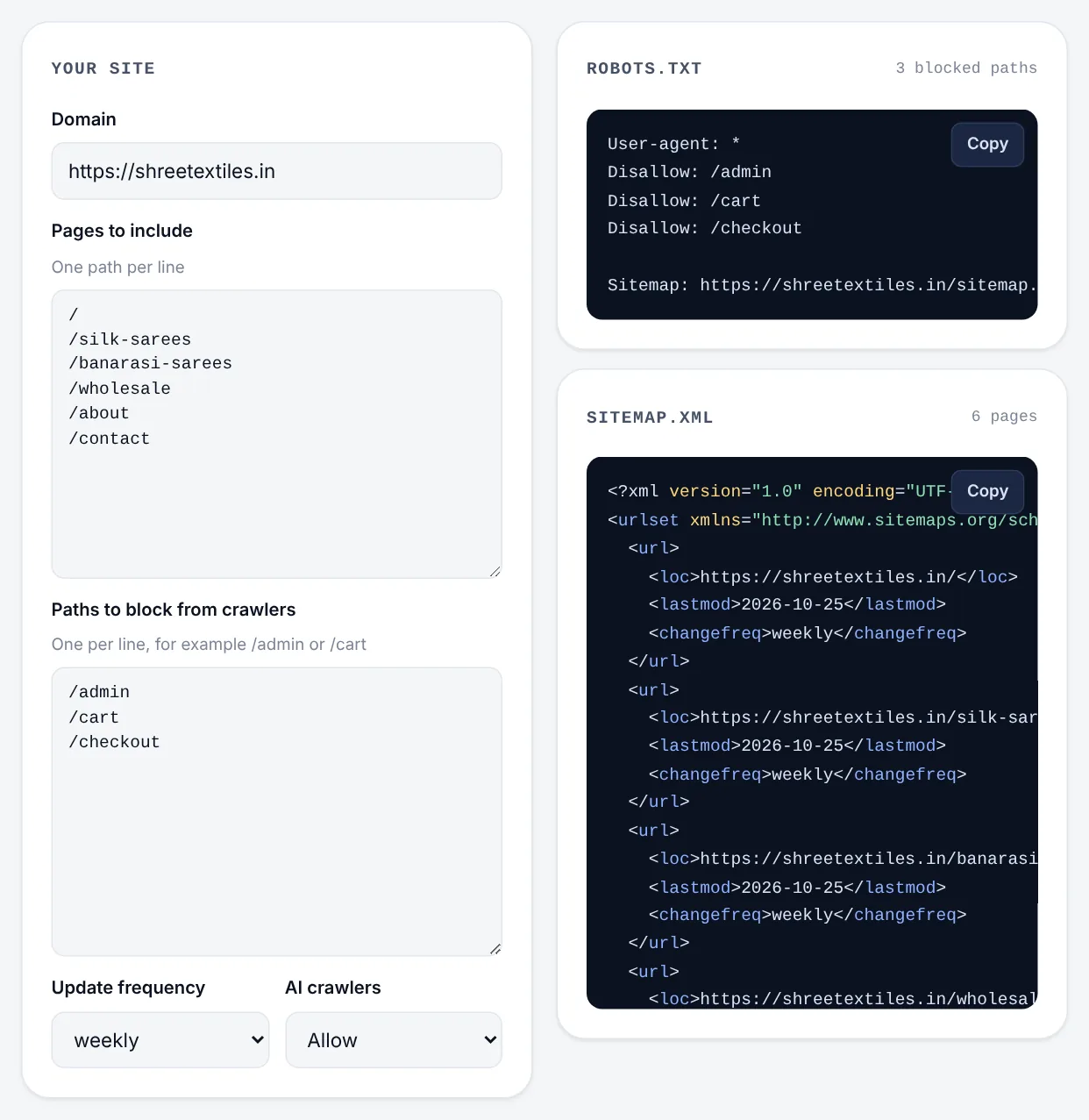
The robots.txt and sitemap generator builds both files from your live site's pages, keeps your existing rules, blocks private paths and AI crawlers with one setting, and adds the Sitemap: line. On WordPress, Yoast and Rank Math create both files for you. Shopify and Wix create them automatically at /robots.txt and /sitemap.xml.
Then run any page through the Rankdesk SEO audit. It reads your robots.txt and tells you whether the page is blocked and by which rule, checks for a noindex tag or header, finds your sitemap and confirms the page is listed in it.